Distribution · Step 9 of the listing wizard
Connecting a tour to GetYourGuide
Two systems have to agree before a single traveller can book. This walks through both of them, in the order that works: everything on our side first, then the GetYourGuide portal.
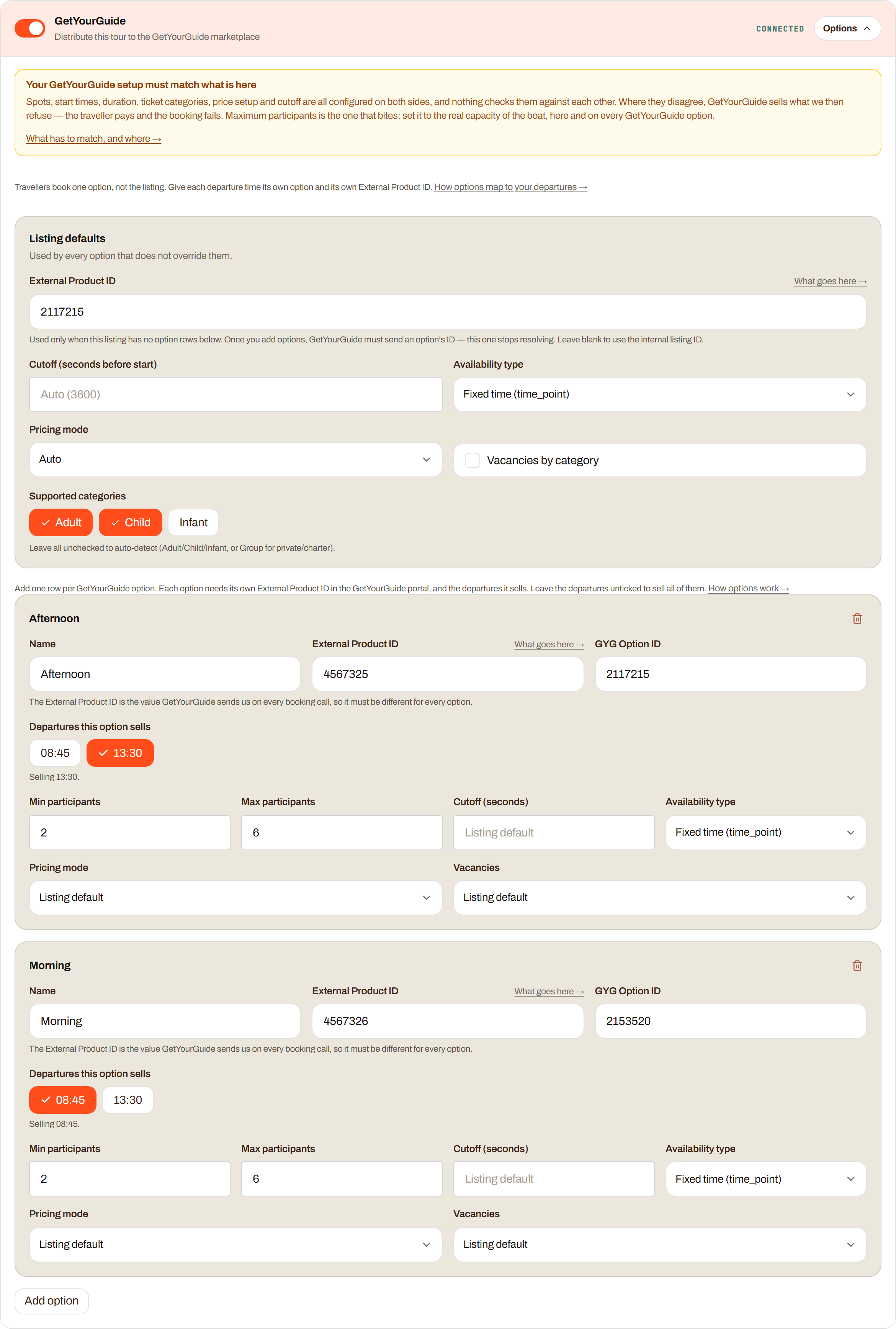
Turn GetYourGuide on
Open the listing, walk to Step 9 (Distribution), and switch the GetYourGuide toggle on. The box expands underneath it. CONNECTED on the right is your account connection, not this listing.

Fill in the listing defaults
These apply to every option that does not set its own value. You can leave most of them on Auto.
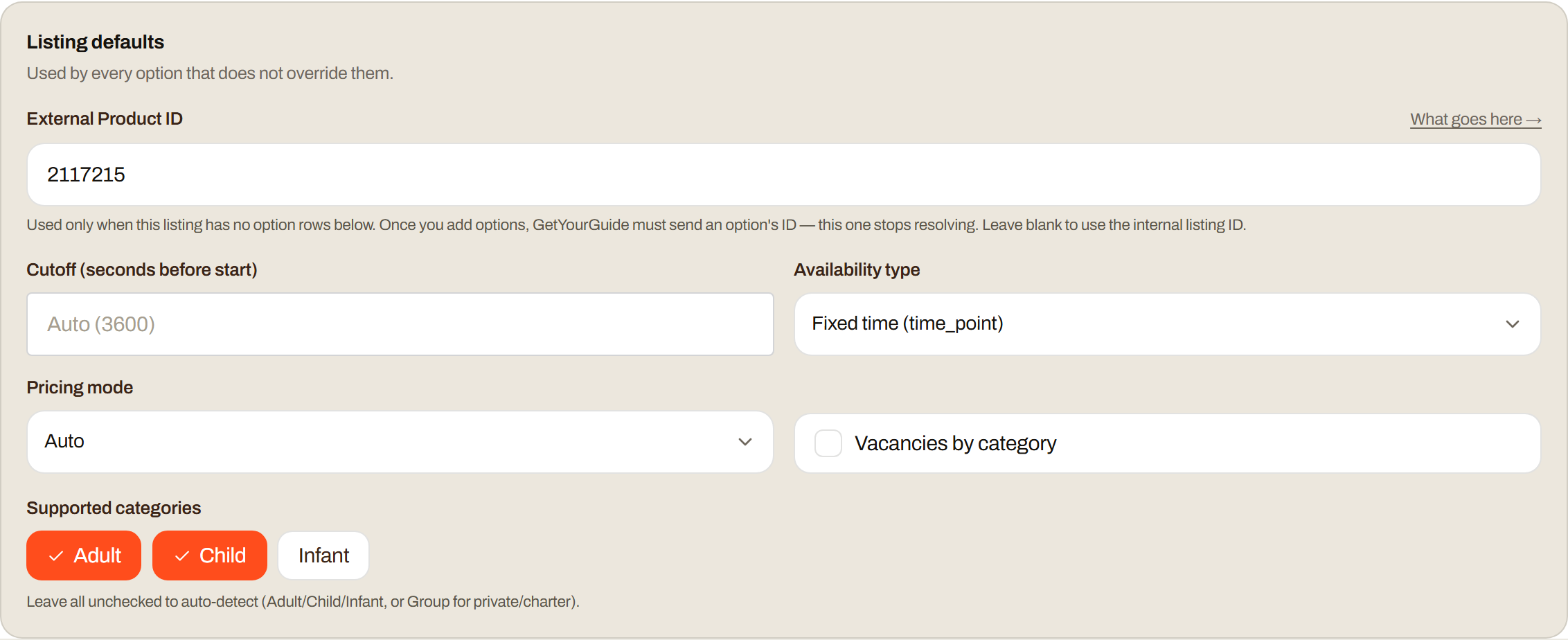
- External Product ID. Your own reference for this tour. You choose it, it can be any number or code you like, and it only has to be unique inside your account. It matters because GetYourGuide sends it back to us on every availability and booking call: it is how we know which of your tours is being asked about. This listing level one is only used when the listing has no option rows at all. As soon as you add options, each option needs its own.
- Cutoff. How late a traveller may still book, in seconds before departure. Auto is 3600, which is one hour. Two hours is 7200.
- Availability type. Fixed time for departures that leave at a set clock time. Open window for anything valid across a whole day. Auto picks fixed time when your schedule has real start times.
- Pricing mode. Flat is one price per person. Per group is one price for the whole boat. Per category prices adults, children and infants separately. Auto follows how the listing itself is priced.
- Vacancies by category. Leave off unless GetYourGuide is set up to count adult and child seats separately. Then the seats we report are split per category rather than given as one total.
- Supported categories. Which ticket types this tour sells. It must be the same set as on GetYourGuide. If GetYourGuide sends a category you have not switched on here, we cannot price it and the booking is refused.
Add one option per departure
Travellers book an option, never the listing. A morning and an afternoon departure are two options, so they get two rows. Press Add option for each one.
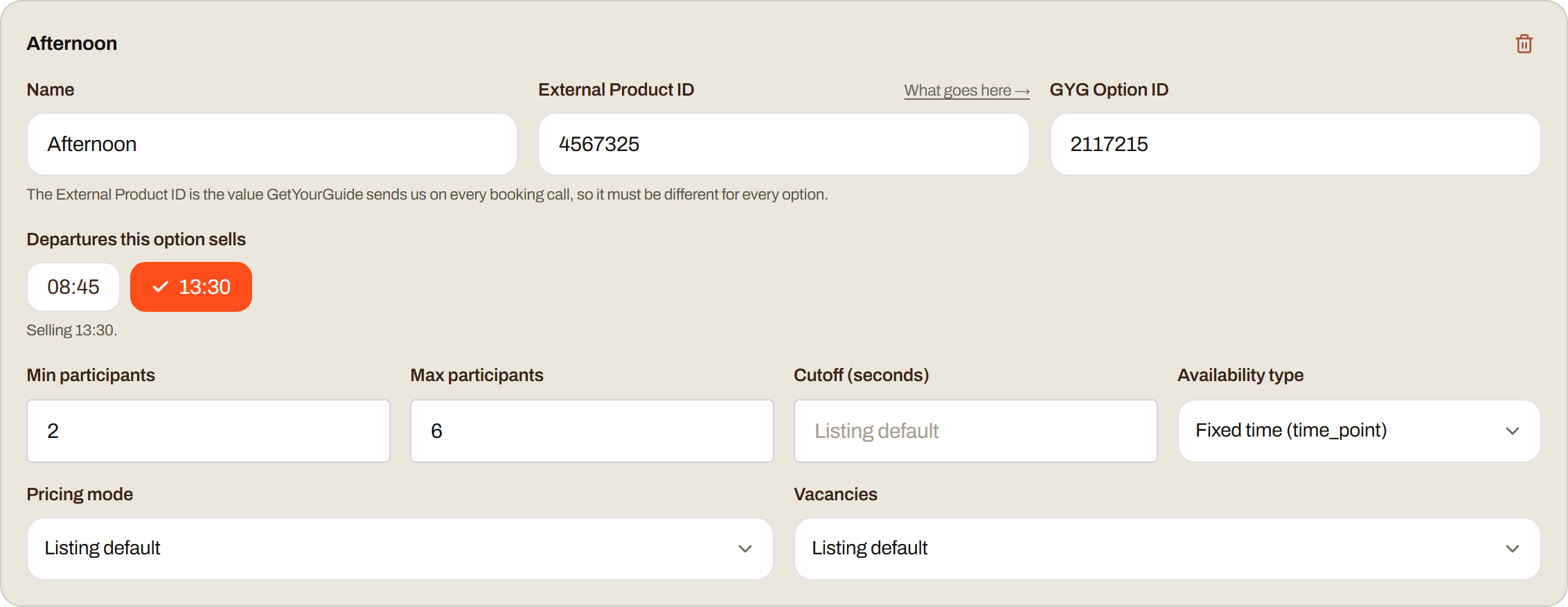
- Name. For you, so you can tell the rows apart. Matching the reference code you use on GetYourGuide makes life easier later.
- External Product ID. Again yours to choose, and it must be different for every option. This is the value you will type into GetYourGuide in step 6.
- GYG Option ID. This one is not yours to invent. Copy it from the option on GetYourGuide, where it is shown as Option ID.
- Departures this option sells. Tick the start times this option covers. Leave everything unticked and the option sells every departure in your schedule.
- Min and max participants. The maximum is the seat count we enforce. Read the warning further down before you set it.
- Cutoff, availability type, pricing mode, vacancies. Leave on Listing default unless this one option genuinely differs.
Save the listing
Use Save draft, or carry on to Step 10 and save from there. Nothing you typed exists for GetYourGuide until the listing is saved. This is the moment the options become real and the External Product IDs start resolving.
On GetYourGuide, open the option and go to Connectivity settings
In the GetYourGuide supplier portal, open the product, then edit the option you are connecting. Walk to the Connectivity settings step. Do this for each option separately.
Choose Operator Cockpit and paste the External Product ID
Select Yes, I use a reservation system. In the field underneath, type Operator Cockpit and pick it from the list. Then enter the External Product ID you gave this option in step 3. Character for character, no spaces on either end.
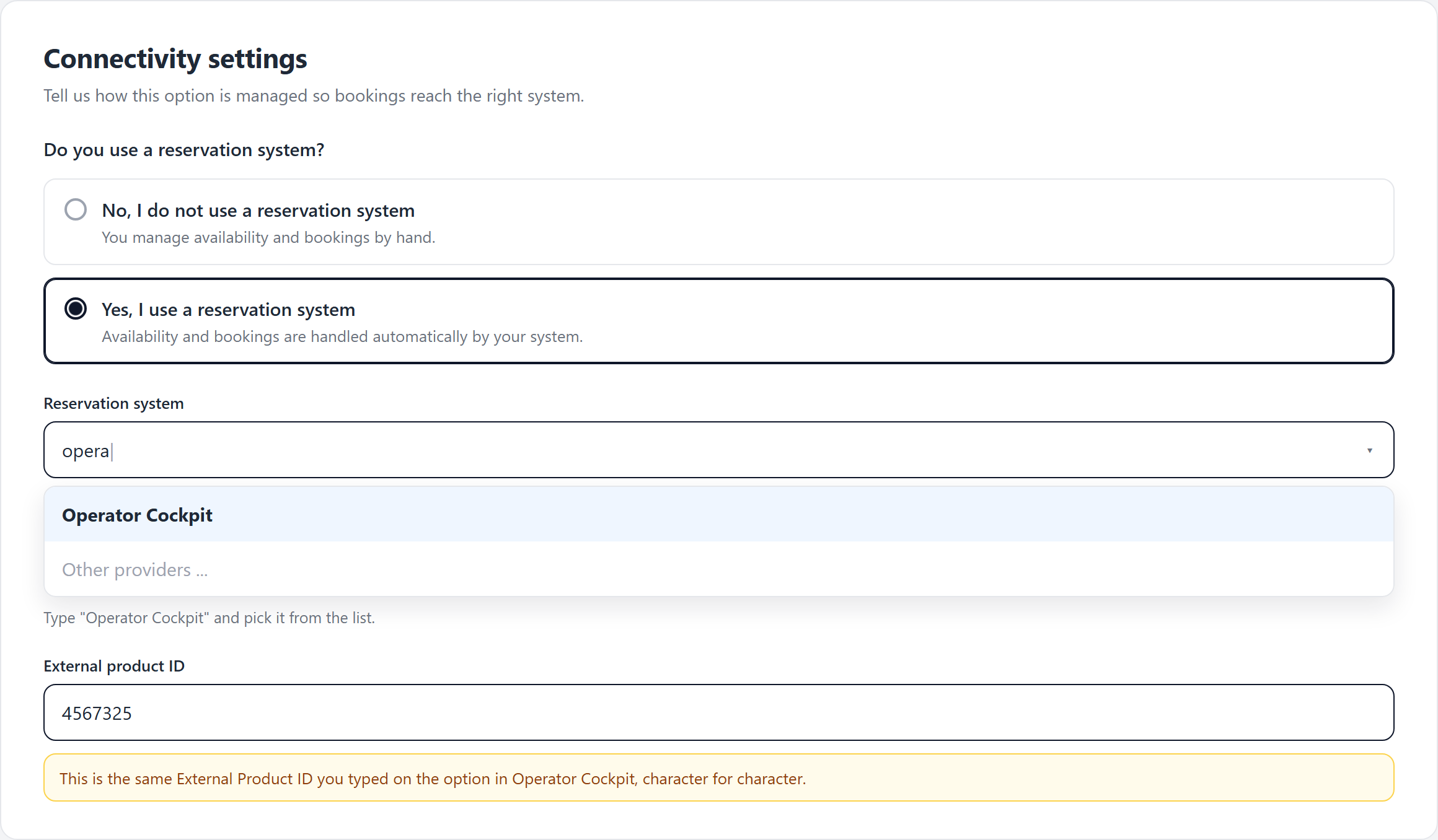
Check the option summary against your row
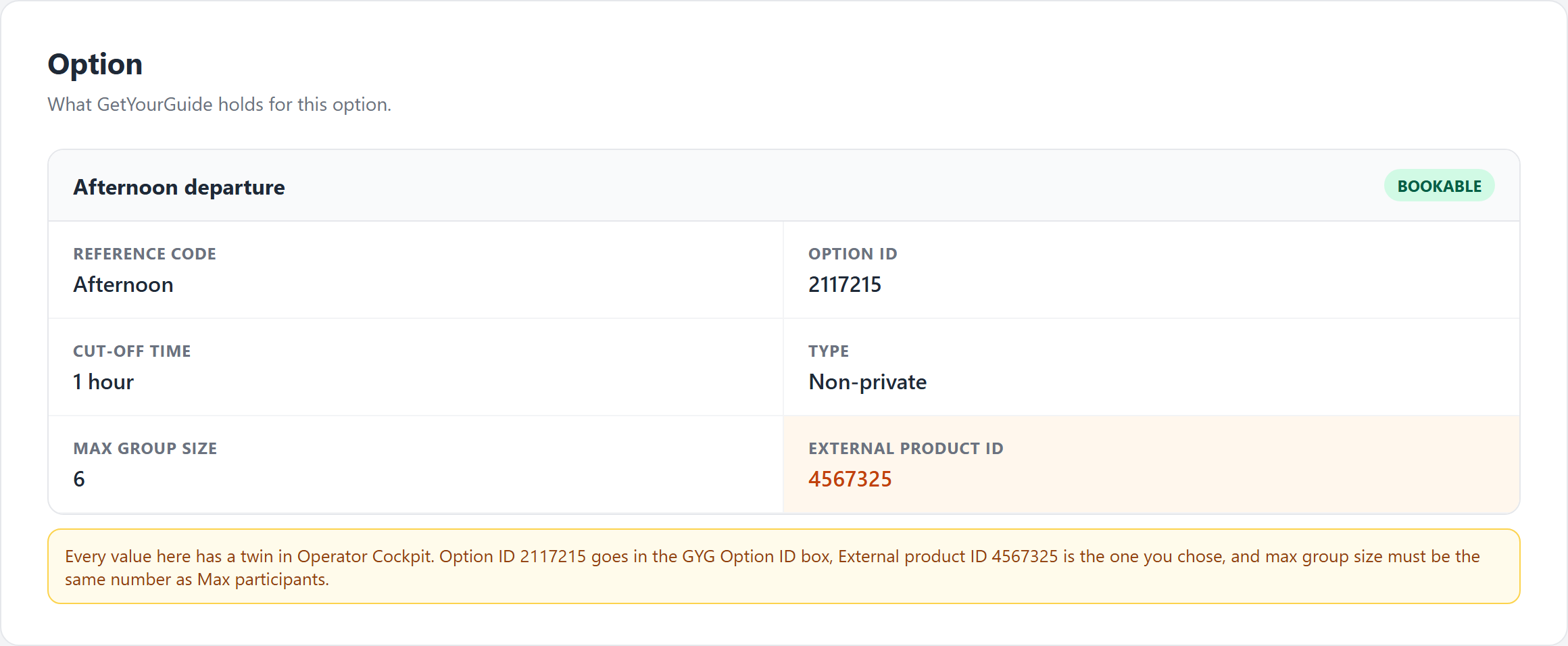
When you save, GetYourGuide shows the option summary. Read it next to your option row and make sure the values are the same on both screens.
Test it
Ask GetYourGuide to run a test booking, or watch the first real one. A booking that arrives lands in your Bookings list within seconds and the seats come out of the same departure your own guests book. If nothing arrives, the External Product ID is the first thing to check.
The mistake that causes overbooking
Nothing reconciles the two systems. GetYourGuide sells against its own copy of the setup, we answer availability and hold seats against ours, and neither side warns you when they disagree.
The damaging case is setting a higher capacity in Operator Cockpit than the option on GetYourGuide actually offers. The two sides now believe in different boats. GetYourGuide keeps selling past the number of seats that really exist, and the mismatch only surfaces at the last moment, when the traveller has already paid and we are asked to hold seats that are not there. We refuse.

Set the maximum to the true capacity of the boat or vehicle, here and on every GetYourGuide option. Not the number you would like to sell, and not a number left over from a bigger boat. Check every option, because the maximum is set per option on both sides.
Lowering it to the honest number can push departures that already carry bookings straight to sold out. That is the correct answer: those seats were never really available.
Questions that come up
Where do I find the Option ID?
On GetYourGuide, on the option itself, shown as Option ID next to the reference code. Copy it across rather than retyping it.
Can two options share one External Product ID?
No. It is the only thing that tells us which departure a booking is for. Sharing it sends the afternoon booking into the morning boat. The wizard refuses to save duplicates.
I changed a departure time. What now?
Change it on GetYourGuide too, in the same sitting, and re-tick the departure on the option row here. A start time that exists on only one side sells a departure that has no seats.
Do I have to push availability after a change?
No. We publish availability to GetYourGuide as soon as it changes, and GetYourGuide also asks us fresh whenever it needs a number.
Bookings still fail and every value matches
Check whether this tour shares a boat with another listing. A booking on either one closes the overlapping window on both, and GetYourGuide is simply told there is nothing left for that time. See Linked availability: tours that share one boat.